AWS Direct Connect
AWS Direct Connect
An AWS Direct Connect service is delivered as a hosted connection to your AWS account, from one of your Service Ports to one of our AWS Ports. See Cloud Connect for viewing, editing and cancelling your Cloud Connect services.
Ordering an AWS Direct Connect Service
Before you begin, please have your 12-digit AWS Account ID ready. This is the AWS account the hosted connection will be allocated to.
-
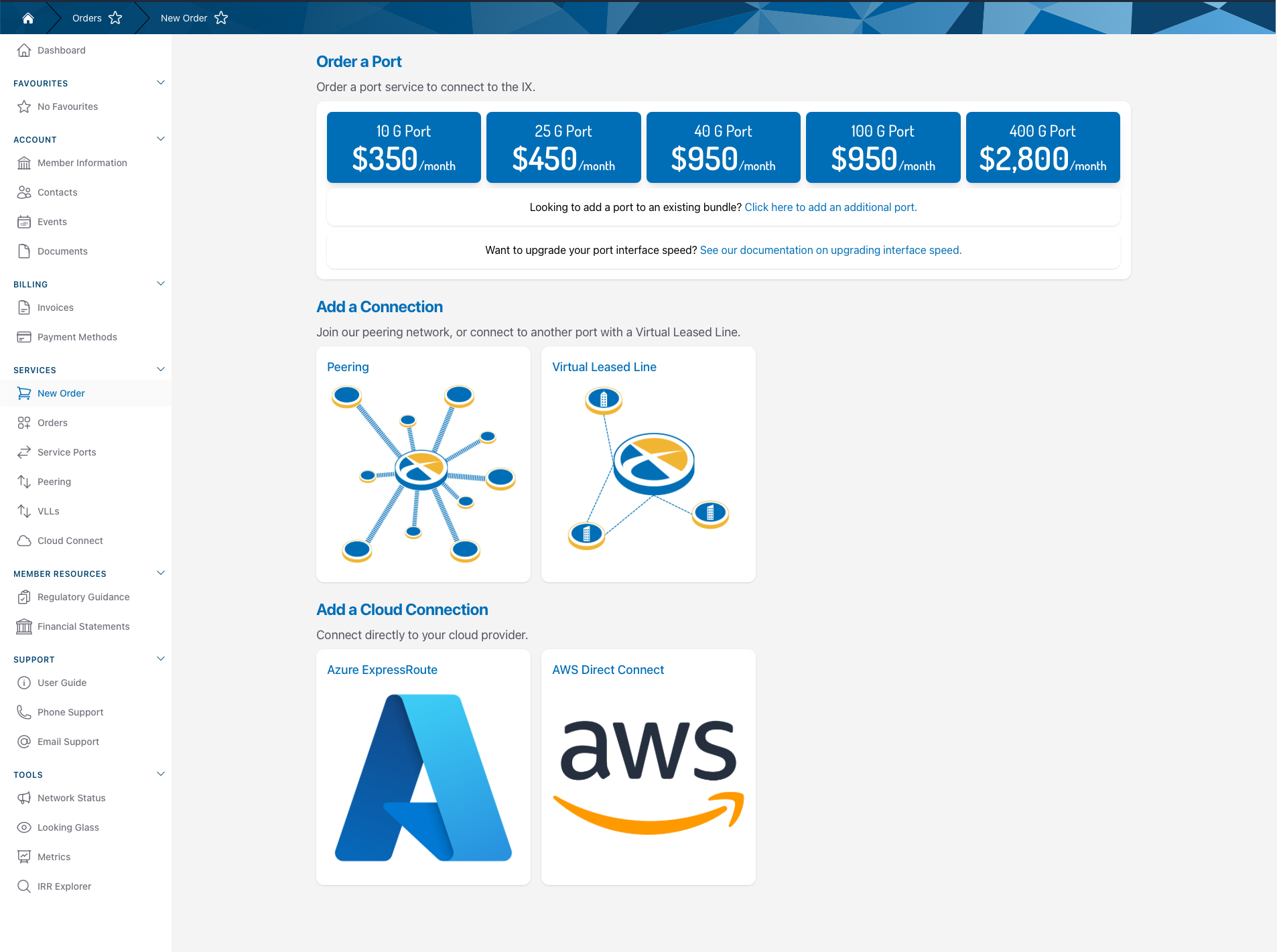
Navigate to the New Order page and select the AWS Direct Connect product.
-
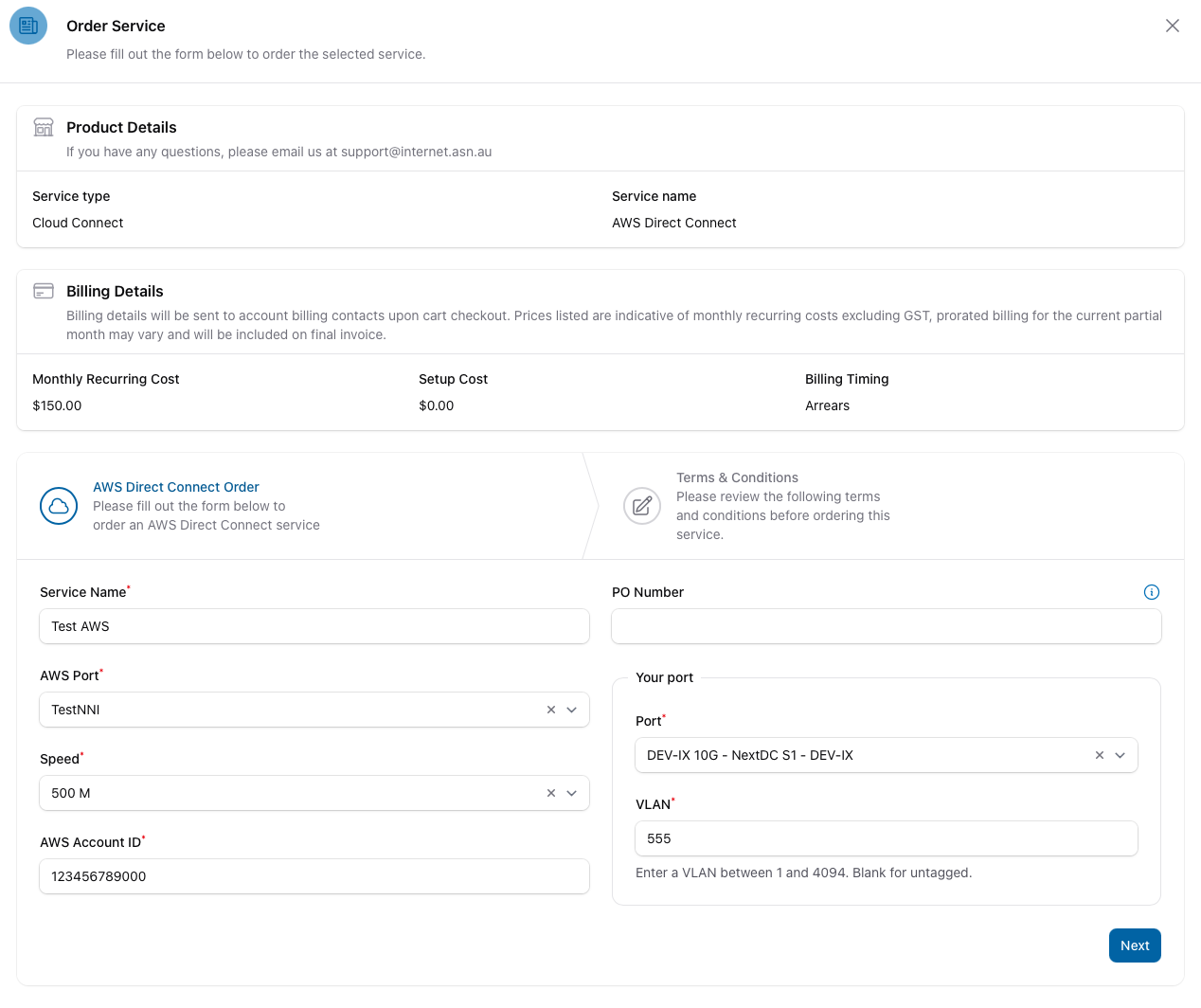
Use an internal reference for your Service Name, and enter a PO Number if required.
- Select the AWS Port you would like to connect to.
- AWS Ports that have reached their maximum number of connections can't be selected.
- Select a Speed. Only speeds that fit within the selected AWS Port's remaining capacity will be shown.
- Enter your AWS Account ID.
- Under Your port, select the Service Port the service is to be delivered on. Service Ports in your cart can also be selected.
- Provide VLAN Tagging details if required, or leave the VLAN blank for an untagged service.
- A VLAN is required if your port already has an untagged service.
-
(If required) Enter your router's MAC address.
- Due to a hardware limitation, this is required where your Service Port is on the same network device as the AWS Port. Upcoming works in Q1 2027 will remove this requirement.
- Please Note: Depending on your port and AWS Port selections, the Portal may automatically select the appropriate product for your order. For example, if your port is at a different exchange to the AWS Port, the Intercapital AWS Direct Connect product will be selected. If this happens, you will see a notification confirming the product that has been selected for your order.
-
Review the fee and the Terms and Conditions.
- Click Add to Cart.
- Your Cloud Connect order will be added to the cart. Please see Ordering a new service for more information on completing your order and checking out the cart.
- Your Cloud Connect details will be displayed, in an Allocating status, on the Cloud Connect page. Please review all the details by clicking View.
- You will receive an email confirmation of your order when it's submitted and a second email when the order has been completed. The status will update within the Portal as your Cloud Connect service is processed.
- Once provisioned, a hosted connection named after your Service ID will appear in your AWS account, and its AWS Connection ID will be shown on the service's details page. You must accept the hosted connection in the AWS Direct Connect console before it can be used. See Accept a hosted connection in the AWS documentation for more information.
For details on VLAN tagging, capacity and routing for AWS Direct Connect, see the Cloud Connect technical guide.
Changing the Speed of an AWS Direct Connect Service
Follow the steps in Editing a Cloud Connect Service, selecting your new Speed.
- AWS hosted connections are only available in set speeds, so you can only choose from the speeds available when ordering that fit within the AWS Port's remaining capacity.
- Changing the speed only changes the speed limit on our network. Once your change is submitted, we will request the matching change to your hosted connection from AWS. Please allow 1 business day for AWS to apply it. Until then, you will be limited to the lower of the two speeds.
Cancelling an AWS Direct Connect Service
Before your cancellation date, please delete all virtual interfaces on your hosted connection from the AWS Direct Connect console. See Delete a virtual interface in the AWS documentation for more information.
Then follow the steps in Cancelling a Cloud Connect Service. When your service is cancelled, we will delete the hosted connection from your AWS account, which stops the port-hour charges from AWS. AWS won't allow the hosted connection to be deleted while virtual interfaces are still attached, so your cancellation can't be completed until they have been removed.