Service Schedules
Service Schedules
A Service Schedule is a signed contract that places one of your Services (a Service Port, Peering Service or VLL) under a fixed term at a discounted rate. Service Schedules are managed from the Billing Overview section on that Service's detail page.
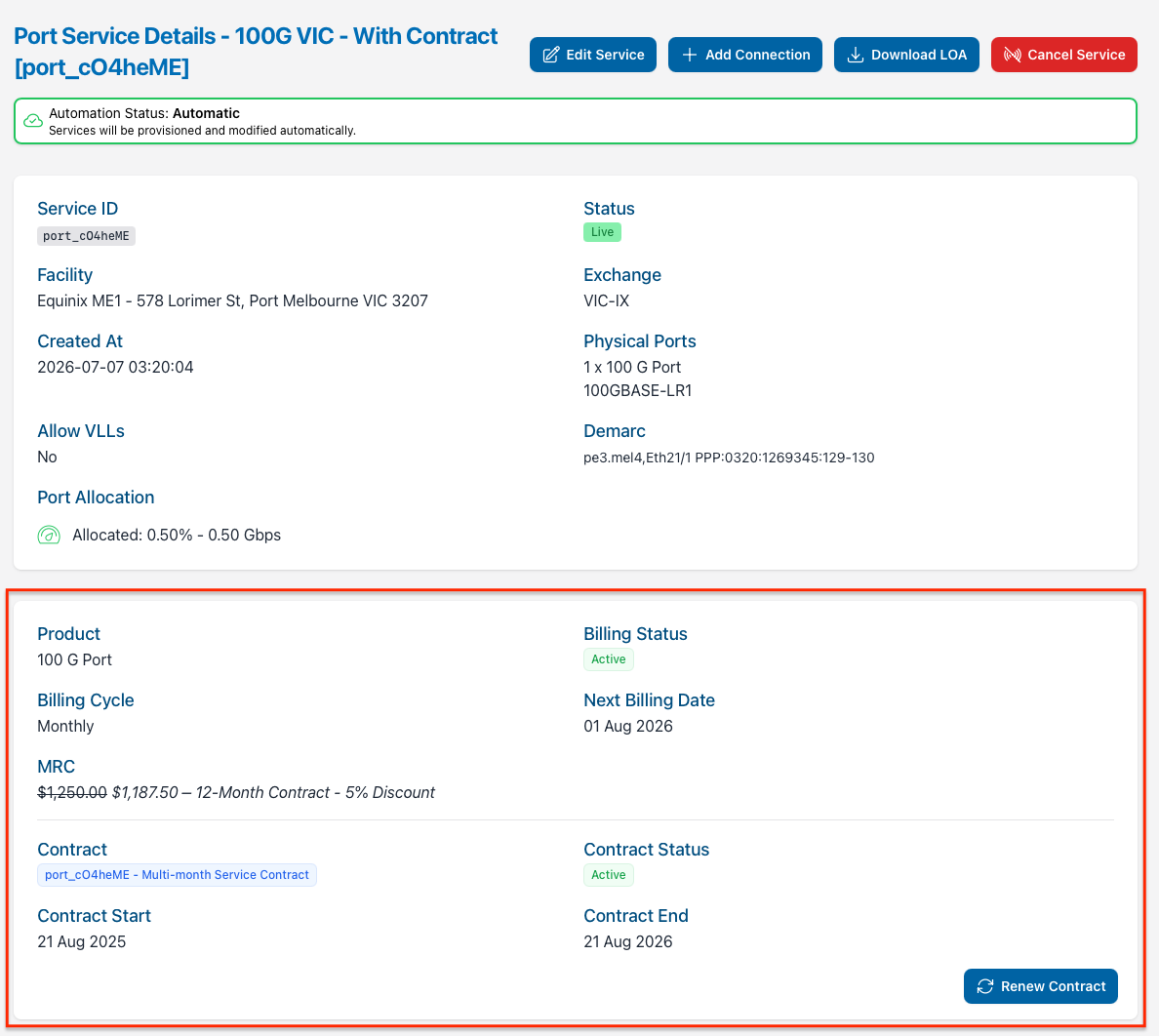
Service Schedule Statuses
| Status | Meaning |
|---|---|
| Pending | The Service Schedule has been created but not yet signed. |
| Upcoming | Signed, but its term hasn't started yet — it will become Active on its start date. |
| Active | Signed and currently in effect. |
| Expired | The term has ended. |
| Superseded | Replaced by a newer Service Schedule, for example after a renewal or upgrade. |
Signing a Service Schedule
When you order a Service that's eligible for a contract offer, you'll be asked whether to sign the Service Schedule immediately or later:
- Sign now — you review and sign the Service Schedule as part of placing the order.
- Sign later — the Service Schedule is emailed to your nominated signer to review and sign afterwards.
Activation waits for signing and provisioning
A Service Schedule only becomes Active once it has been signed and the Service has finished provisioning. If you sign immediately and network resources are available, this can happen the same day. If you choose to sign later, provisioning is held until the Service Schedule has been signed.
Your MSA must permit multi-month contracts
You need a signed Master Service Agreement (MSA) that permits multi-month contracts before a Service Schedule can be signed. If yours doesn't, you'll be prompted to review and sign an updated MSA as part of the signing process. See Signing & Requesting Changes to Documents.
Only Full Access users can sign documents and Service Schedules.
Placing an Existing Service Under Contract
If a Service isn't already under contract, you can convert it to a Service Schedule to access discounted contract pricing:
- Navigate to the Service's detail page and, in the Billing Overview section, click View Available Contracts.
- Select a contract term from the Contract drop-down.
- Review the Service Schedule details and terms.
- Complete your signer details and sign.
- Your contract will begin at the start of your next billing period (or immediately following your current discount, if one is ending).
Renewing a Service Schedule
Within 6 months of your Service Schedule's expiry, a Renew Contract button appears in the Billing Overview section, and you'll also receive an email reminder as the expiry date approaches.
To renew:
- Navigate to the Service's detail page and click Renew Contract in the Billing Overview section.
- Select the new contract term.
- Review the Service Schedule details and terms.
- Complete your signer details and sign.
- Your renewal will supersede the current Service Schedule, starting at your next billing period.
Adding ports to a contracted service
LACP-enabled Service Ports that are already under a Service Schedule can be upgraded to add more physical ports to the bundle by entering into a new Service Schedule, rather than editing the port count directly:
- Navigate to the Services > Service Ports page and click View on the port you wish to upgrade.
- Click the Edit Service Button (next to the Port Service Details header).
- Under the port count field, click View Upgrade Options.
- Select the new total number of physical ports required.
- Select a new contract term.
- The new term's end date must be greater than or equal to your current contract's end date.
- Review the Service Schedule details and terms.
- Complete your signer details and sign.
Your new contract takes effect immediately
Unlike a renewal, an upgraded Service Schedule supersedes your existing contract as soon as it's signed — it doesn't wait for your next billing period.
Upgrading a contracted port interface speed
Contracted Service Ports may be upgraded to a higher interface speed without incurring an early termination fee, provided that a contract term is entered into for the new port with an end date greater than or equal to the end date of the contract on the existing port.
See Upgrading a Service Port Interface Speed.
Early Termination Fees
If you cancel a Service before its End Date, an Early Termination Fee (ETF) may apply. The fee is prorated against the remaining time on your contract, based on your discounted recurring charge — the sooner you cancel relative to your contract's end date, the higher the fee.
When you request a cancellation, you'll see a live preview of any Early Termination Fee for the cancellation date you've chosen before you submit the request. See Cancelling a Service Port, Cancelling a Peering Service, Cancelling a VLL Service or Cancelling a Cloud Connect Service.
Cancelling a Service Port also cancels its dependent Services
Cancelling a Service Port cancels any Peering or VLL Services still running on it at the same time. If any of those Services are also under a Service Schedule, each one may carry its own separate Early Termination Fee.
Downloading a Service Schedule
Once signed, your Service Schedule can be downloaded from the Billing Overview section, or from the Documents page.
Service Terms
Services that aren't under a Service Schedule are provided under our standard Service Terms, which should be read in conjunction with your Master Service Agreement (MSA). The Service Terms set out the service's term, how it's billed and priced, and how it can be cancelled.
You'll be shown the Service Terms in the Terms and Conditions section when ordering a service. Once ordered, the Service Terms that apply to a service are shown in its Billing Overview section:
- Navigate to the Service's detail page and locate the Service Terms heading in the Billing Overview section, along with the date they have applied since.
- Click View service terms to expand and read them, or click Download to download a PDF copy.
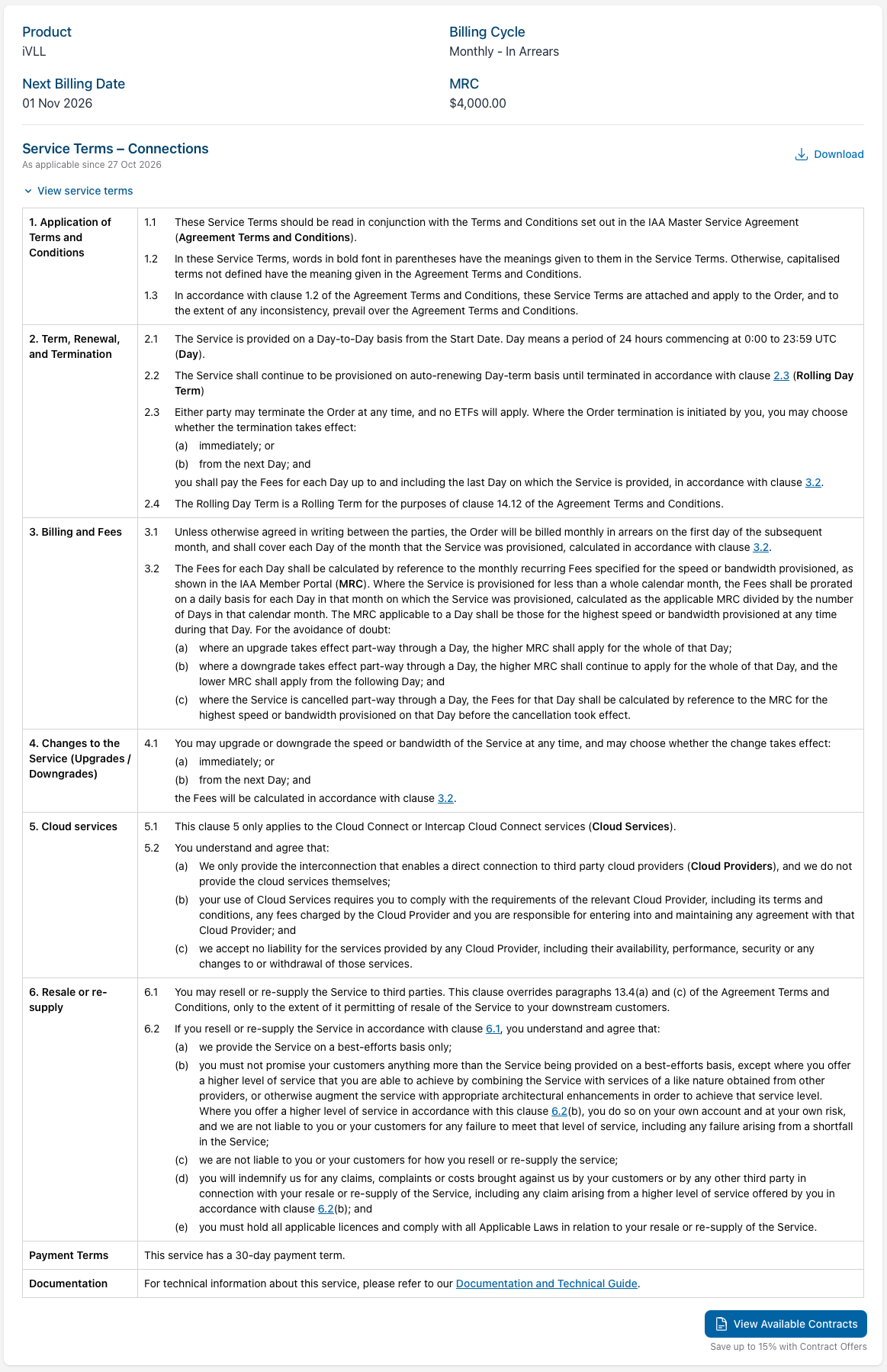
If we update our Service Terms, the updated terms will apply from the date shown. When a Service is placed under a Service Schedule, the Service Schedule's terms apply instead, and the Service Terms are no longer shown.