Azure ExpressRoute
Azure ExpressRoute
An Azure ExpressRoute service is delivered as a primary and secondary link to your ExpressRoute circuit, from your Service Ports to two separate Azure Ports. See Cloud Connect for viewing, editing and cancelling your Cloud Connect services.
Ordering an Azure ExpressRoute Service
Before you begin, you will need to create an ExpressRoute circuit in the Azure portal, selecting Internet Association of Australia (IX Australia) as the provider and your preferred peering location and bandwidth. Once the circuit has been created, copy its Service Key. See Create and modify an ExpressRoute circuit in the Microsoft documentation for more information.
- Navigate to the New Order page and select the Azure ExpressRoute product.
- Use an internal reference for your Service Name, and enter a PO Number if required.
-
Enter your Azure Service Key, then click Lookup service key.
- The Portal will retrieve your circuit's details from Azure, including the primary and secondary Azure Ports and the speed of the service. The speed of an Azure ExpressRoute service is set by your circuit's bandwidth in Azure.
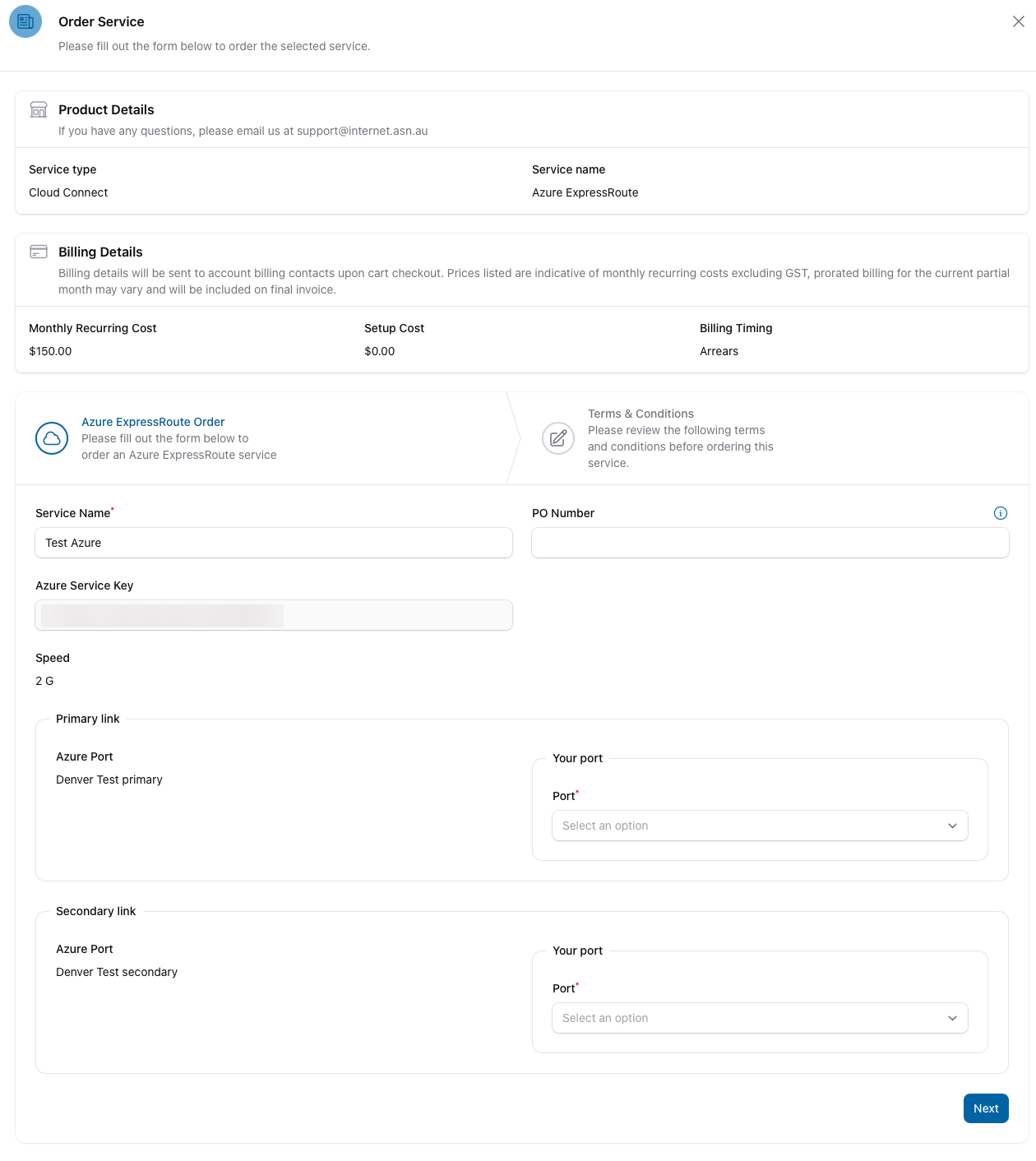
-
Under Primary link, select the Service Port the primary link is to be delivered on, and enter a VLAN between 1 and 4094. Azure ExpressRoute links can't be delivered untagged.
- Under Secondary link, select the Service Port the secondary link is to be delivered on, and enter a VLAN.
- The secondary link's port must be at the same exchange as the primary link's port.
- Both links can be delivered on the same port, but each link must use a different VLAN. We recommend using separate ports for redundancy.
-
(If required) Enter your router's MAC address for each link.
- Due to a hardware limitation, this is required where your Service Port is on the same network device as the Azure Port. Upcoming works in Q1 2027 will remove this requirement.
- Please Note: If your ports are at a different exchange to the Azure Ports, the Portal will automatically select the Intercapital Azure ExpressRoute product. If this happens, you will see a notification confirming the product that has been selected for your order.
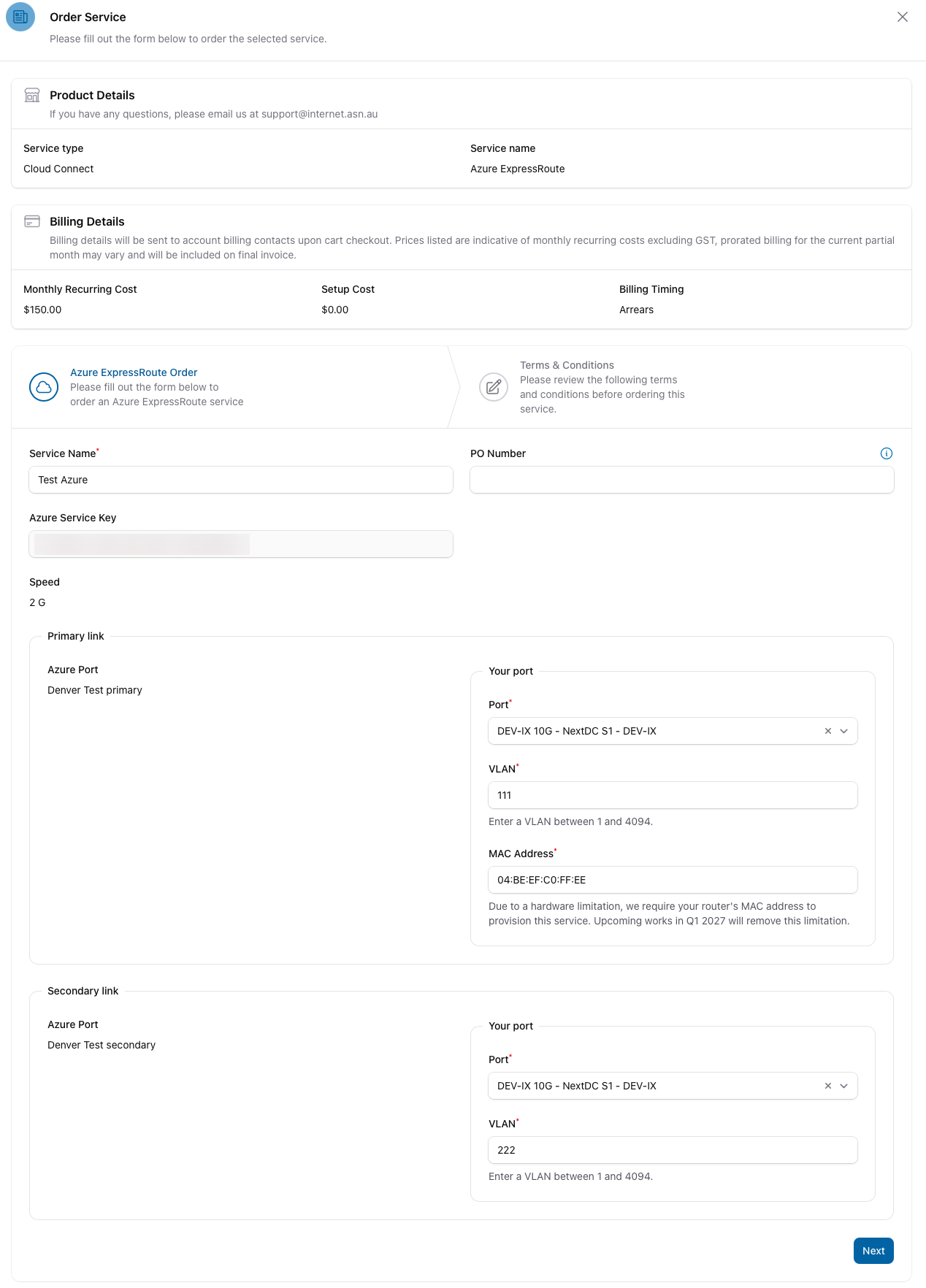
-
Review the fee and the Terms and Conditions.
- Click Add to Cart.
- Your Cloud Connect order will be added to the cart. Please see Ordering a new service for more information on completing your order and checking out the cart.
- Your Cloud Connect details will be displayed, in an Allocating status, on the Cloud Connect page. Please review all the details by clicking View.
- You will receive an email confirmation of your order when it's submitted and a second email when the order has been completed. The status will update within the Portal as your Cloud Connect service is processed.
- Once provisioned, your circuit's provider status in Azure will change to Provisioned, and you can configure peering on the circuit from the Azure portal. See Configure peering for an ExpressRoute circuit in the Microsoft documentation for more information.
For details on QinQ VLAN tagging, redundancy and routing for Azure ExpressRoute, see the Cloud Connect technical guide.
Cancelling an Azure ExpressRoute Service
Follow the steps in Cancelling a Cloud Connect Service. Cancelling only removes the connection from our network, so please also delete the ExpressRoute circuit from the Azure portal to avoid ongoing charges from Microsoft.